LOGRI.GROUP

LOGRI · ABCD

How to read LOGRI Radar crypto signals: entry, SL and TP

This screen collects technical chart setups. Find a coin and its status, then inspect its chart and trade plan. A watch or breakout state is not yet a confirmed entry.

Checked against interface and code on 26 October 2026

Start here

Read steps 1–4, then open the working section. Return to the explanations below whenever you encounter an unfamiliar field.

What to do and what you get

  1. Step 1 of 4

    Refresh the list

    Open ABCD and click Scan. You get the current setups and the latest scan time.

  2. Step 2 of 4

    Find a coin

    Enter a ticker or select a status filter. The list narrows; click the active filter again to clear it.

  3. Step 3 of 4

    Open and read details

    Select a coin row. The chart, pattern boundaries and calculated plan appear in its details; check direction and 15m confirmation.

  4. Step 4 of 4

    Check plan and risk

    Review entry, SL, TP and risk sizing. A calculated plan does not make a late or invalid setup actionable.

Screen map

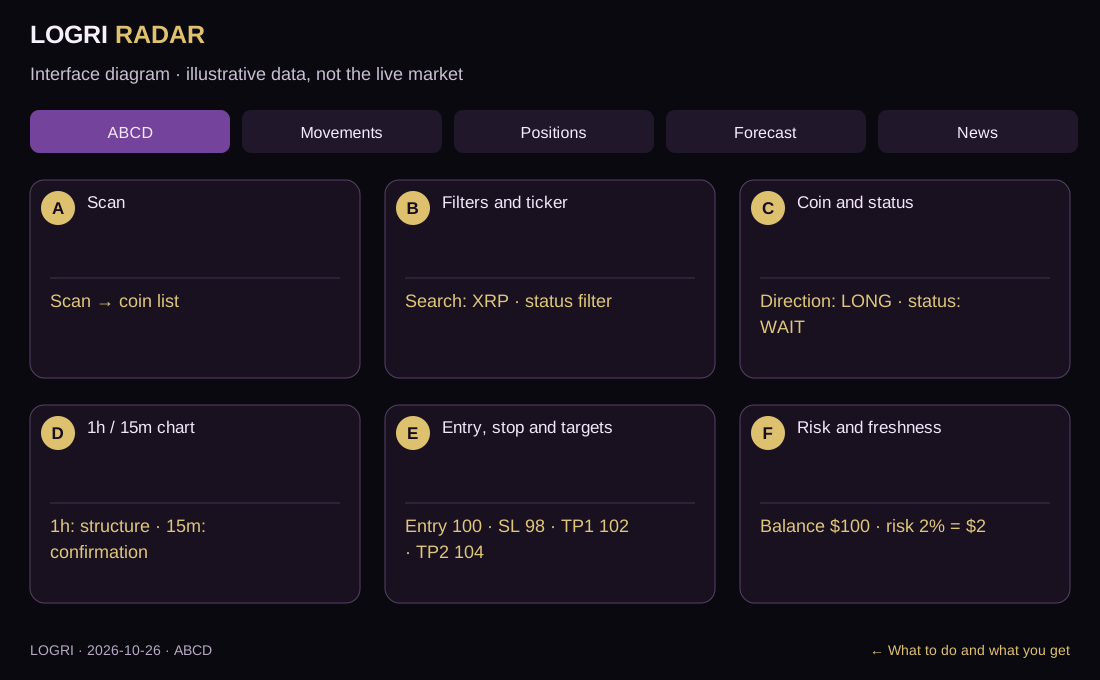
A–F identify areas of this learning diagram, not button numbers or a sequence of actions. Select an area to jump to its explanation below. Working panels may stack vertically on a phone.

Interface diagram · illustrative data, not the live market
Enlarge diagram here

Scroll the enlarged diagram horizontally. Select this heading again to collapse it. All explanations stay on this page.

ABCD: Interface diagram · illustrative data, not the live market
  1. A · Scan
  2. B · Filters and ticker
  3. C · Coin and status
  4. D · 1h / 15m chart
  5. E · Entry, stop and targets
  6. F · Risk and freshness

What each area contains

What each parameter means

On screenHow to read and use it
Markets / Signals / Watching / ReadyCoverage and state counts. Ready still requires checking the selected card; it is not a count of open trades.
Ticker and LONG / SHORTThe pair and calculated direction. The same ticker does not guarantee identical execution prices across venues.
Score /10A technical-structure score. 8/10 does not mean an 80% profit probability.
Watch / Breakout / RetestThe setup stage: waiting, boundary breakout or return. Check entry confirmation separately.
Late / Invalid / Against marketThe move has advanced, structure failed or the BTC-market filter blocked it. Reassess validity.
1h candles and 15m confirmationStructure and lower-timeframe confirmation are different scales. An unfinished candle can change.
Boundaries, height and chartLines describe calculated structure; height informs projected targets. A line is not a placed order.
Volume × and BTC contextThe volume multiple compares activity with the model baseline. BTC context affects filtering, not every coin’s outcome.
Entry zone, SL, TP and close fractionEntry is a condition, SL an invalidation level and TP a target with planned close fractions. Exact fills are not guaranteed.
Balance, risk %, leverage, notional, marginInputs change position sizing. Cash risk differs from notional and collateral; account for fees and exchange liquidation separately.
Monitoring, timestamps and data errorsMonitoring refreshes this tab; the server runs separately. A source failure is not a zero market reading.
↑ Back to the A–F diagram

Worked example

The DEMO/USDT diagram uses entry 100, SL 98, TP1 102 and TP2 104. Check the current state first, even if the structure looks attractive. These are illustrative levels, not a trade offer.

↑ Back to the A–F diagram

Common questions

What do A–F and steps 1–4 mean?

A–F identify areas of this learning diagram, not button numbers or a sequence of actions. Select an area to jump to its explanation below. Working panels may stack vertically on a phone.

What to do and what you get · Screen map
Why did sign-in appear instead of data?

If the working screen requires sign-in, open Access and verify your email. Features depend on your plan; guides remain public. An empty result is not a reason to change rules just to find a trade.

Open sign-in and access
How do I return and what comes next?

All guides are linked at the top and bottom. Use the named section button for practice and Next guide to continue learning.

All guides

Try it in the working screen

The working section’s How to use button brings you back here. If sign-in appears, verify your email and select the required tab again.

↑ Back to the start

Educational guide. Model scores do not guarantee a trade outcome. Reading a guide or viewing Radar does not place orders.

Continue learning

Primary terminology references